
How to Tell If Your Laptop Has Been Hacked: 10 Practical Ways to Check and Fix It
Have you noticed that your Windows laptop is suddenly running slowly? Maybe your mouse moves unexpectedly, unfamiliar programs appear, or you receive a security alert about a login you don’t recognize.
It’s natural to wonder whether someone has hacked your laptop.
The good news is that you don’t need to be a cybersecurity expert to start investigating. Windows includes built-in security tools that can help you check for malware, review suspicious activity, and improve your laptop’s protection.
However, it’s important to understand one thing: a slow laptop doesn’t automatically mean you’ve been hacked. Windows updates, background applications, low storage space, and hardware problems can cause similar symptoms.
In this guide, you’ll learn how to check whether your Windows laptop may be compromised, what to do if you find something suspicious, and how to protect your personal data from future attacks.
1. What Are the Warning Signs of a Hacked Laptop?

Before changing settings or deleting programs, look for unusual activity. One symptom alone rarely proves that a laptop has been hacked, but several unexplained changes may justify a closer investigation.
Your laptop suddenly becomes slow
If your laptop used to run smoothly but now takes forever to open programs, several things could be happening.
Possible causes include:
- Too many applications running in the background.
- Windows downloading or installing updates.
- Low disk space or insufficient memory.
- A malfunctioning application.
- Malware using system resources.
How to check: Press Ctrl + Shift + Esc to open Task Manager. Under Processes, review CPU, Memory, Disk, and Network usage.
If an unfamiliar program consistently consumes a large amount of resources, write down its name and investigate it before taking action. Some legitimate Windows processes have names you may not recognize.
Your mouse moves or windows open unexpectedly
An unexpected mouse movement can be alarming, especially if windows open or settings change without your input.
Possible explanations include a faulty mouse, touchpad problems, remote-control software, or unauthorized access.
Try disconnecting your external mouse and checking whether the touchpad behaves normally. If applications continue opening or the computer appears to be controlled remotely, disconnect the laptop from Wi-Fi or unplug its Ethernet cable.
Don’t assume that every cursor movement is evidence of hacking, but don’t ignore repeated, unexplained remote-control behavior either.
You notice unfamiliar applications
An unfamiliar application could be legitimate software installed by Windows, a hardware manufacturer, or another program. It could also be unwanted software.
To investigate:
- Open Settings.
- Select Apps.
- Open Installed apps on Windows 11, or Apps & features on Windows 10.
- Review recently installed applications, where the sorting option is available.
- Look up unfamiliar program names using reliable sources.
Pay particular attention to remote-access applications you don’t remember installing.
Don’t delete an application simply because its name looks strange. Verify what it does first.
You receive unexpected login alerts
If Google, Microsoft, or another service notifies you about an unfamiliar login, your account may be at risk even if your laptop itself is not infected.
Open the service’s official website or app directly and review recent security activity.
If you find a login you don’t recognize, change the affected password from a trusted device, sign out unfamiliar sessions, and enable multifactor authentication.
Your files disappear or won’t open
Missing files can result from accidental deletion, synchronization problems, drive failures, or malware.
If your files suddenly have unfamiliar extensions, won’t open, or appear alongside a message demanding payment, ransomware may be involved.
Disconnect the affected computer from the network, avoid connecting backup drives, and don’t delete or rename the affected files. If the data is important, seek professional assistance before attempting recovery.
2. Run a Windows Security Scan
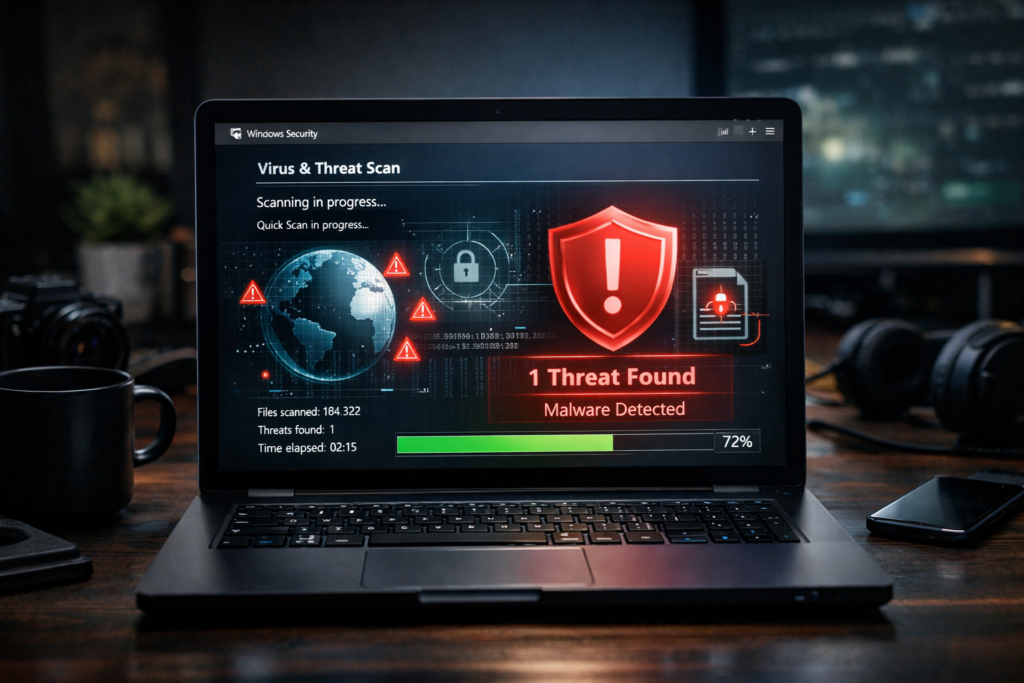
One of the easiest ways to investigate a possible infection is to use Windows Security, which includes Microsoft Defender Antivirus when it is active.
You don’t need to purchase another antivirus program just to perform an initial check.
Step 1: Open Windows Security
- Click Start.
- Type
Windows Securityinto the search box. - Open the application.
- Select Virus & threat protection.
Step 2: Run a Quick scan
Select Quick scan and let it finish.
This checks common locations where malware may be found. If a threat is detected, review the threat details and follow the recommended quarantine or removal action.
If the scan finds nothing, that’s encouraging, but it doesn’t guarantee that every possible security problem has been ruled out.
Step 3: Run a Full scan
If you’re still concerned, return to Virus & threat protection, select Scan options, and choose Full scan.
A full scan checks files and programs across the computer and may take considerably longer, depending on how much data you have.
Step 4: Try Microsoft Defender Offline
If malware keeps returning or you suspect a persistent infection, Microsoft Defender Offline can provide another layer of investigation.
Open Windows Security, select Virus & threat protection, then Scan options. Choose Microsoft Defender Offline scan and select Scan now.
Save your work first because the computer will restart.
After the scan, review the results under Protection history.
For official instructions, see Microsoft’s guide to virus and threat protection.
3. Check Task Manager for Suspicious Activity
Task Manager can help you identify applications using unusually large amounts of CPU, memory, disk space, or network bandwidth.
Here’s how to use it:
- Press
Ctrl + Shift + Esc. - Open the Processes tab.
- Review the CPU, Memory, Disk, and Network columns.
- Note any unfamiliar applications with consistently unusual activity.
- Search for their names using reliable sources before deciding what to do.
For example, a video-editing application may use substantial CPU resources while processing a file. A browser may use considerable memory when dozens of tabs are open. Neither situation automatically indicates malware.
What matters is the context.
An unfamiliar process combined with unexpected network activity, suspicious security alerts, or repeated antivirus detections deserves more attention than a high CPU reading by itself.
Important: Don’t terminate random Windows processes or delete system files. Doing so can cause software instability or make troubleshooting more difficult.
4. Look for Remote-Access Software
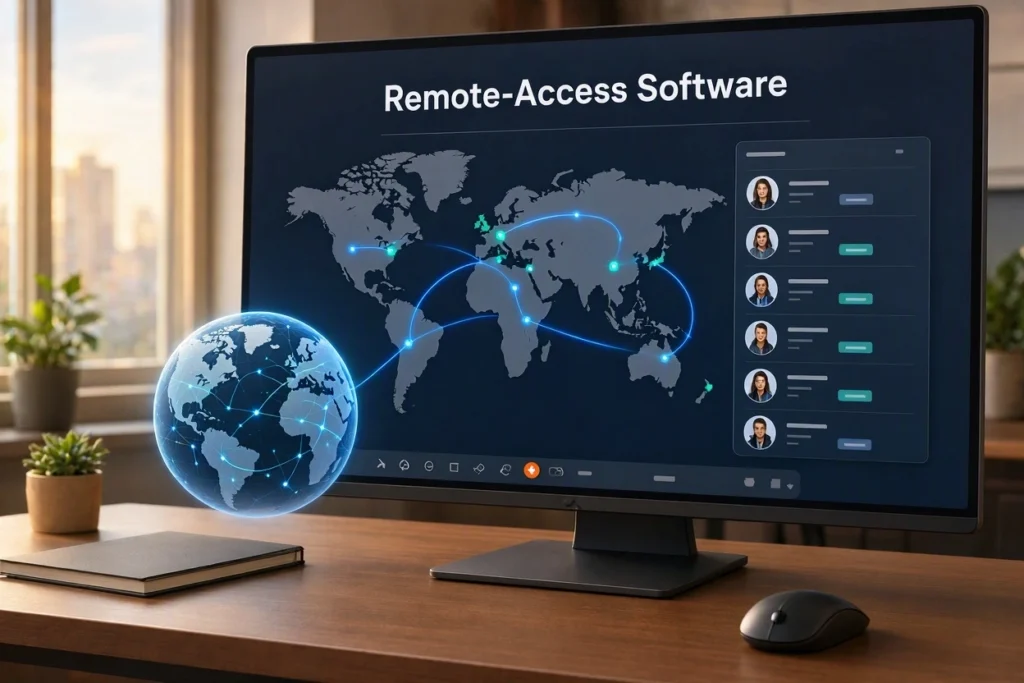
Remote-access programs allow someone to operate a computer from another location. They are commonly used for legitimate technical support and remote work, but scammers can misuse them.
Examples include AnyDesk, TeamViewer, and Windows Remote Desktop.
The presence of one of these programs does not prove that your laptop has been hacked. The important question is whether you authorized its installation and use.
Review installed applications
Go to Settings, open Apps, and review your installed programs.
If you find a remote-access application you don’t recognize, note its name and investigate it. If you suspect someone is actively controlling your computer without permission, disconnect it from the network.
Check Windows Remote Desktop
On supported Windows editions, open:
Settings → System → Remote Desktop
If you don’t use Remote Desktop, consider turning it off if it is enabled unnecessarily.
Keep in mind that disabling Windows Remote Desktop does not disable every other remote-access tool.
If an unknown person previously helped you fix a computer problem, review any access permissions they may have configured. Don’t grant additional access to anyone who contacts you unexpectedly and claims your computer is infected.
5. Check Your Email and Online Accounts
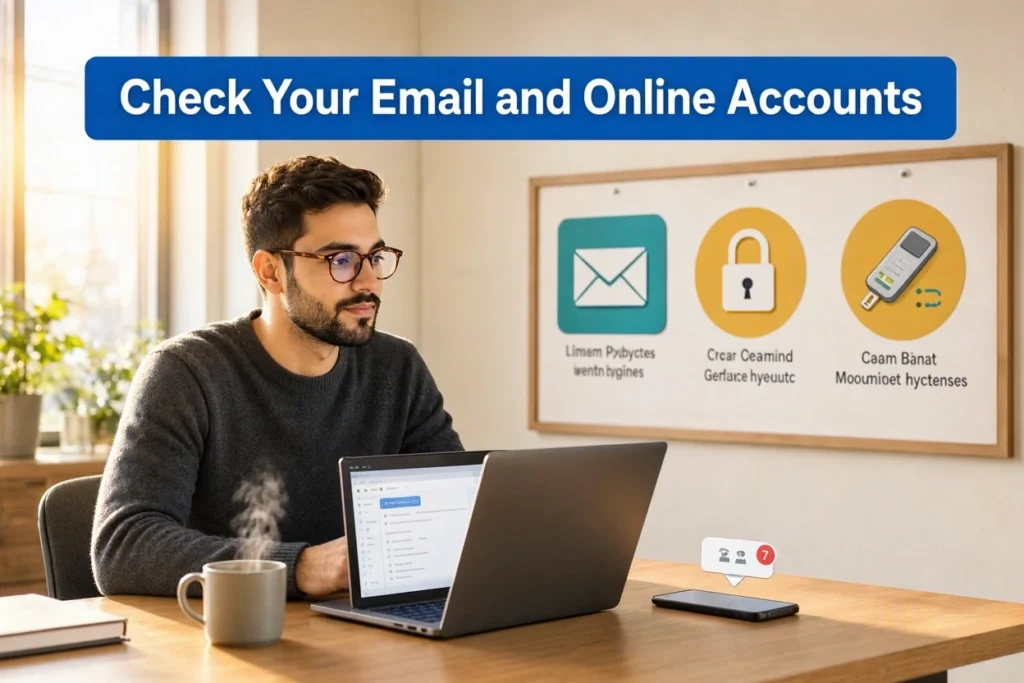
Improve Laptop Security
Follow simple security practices to keep your files and accounts safer.
Practical tips for improving laptop security through software updates, strong passwords, multifactor authentication, and regular backups.
Sometimes people believe their laptop has been hacked when the actual problem is a compromised online account.
For example, if someone obtains your Microsoft account password, they may be able to access information stored in that account or services connected to it.
You can improve account security without reinstalling Windows.
Secure your primary email account first
Your primary email account is particularly important because it may be used to reset passwords for other services.
From a trusted device:
- Open your email provider’s official website or app.
- Review recent sign-in activity.
- Sign out unfamiliar sessions.
- Change your password if you suspect it has been exposed.
- Enable multifactor authentication.
- Check your recovery email address and phone number.
If you reused the same password on other websites, change it on those accounts as well.
Use a different, strong password for every important account. A reputable password manager can help you manage them.
Never share your password, one-time verification code, or account recovery codes with someone claiming to provide technical support.
6. Check Your Camera, Microphone, and Browser Extensions
A guide to reviewing Windows Firewall settings and installing important security updates.
Unexpected camera or microphone activity can be concerning, but it doesn’t automatically mean someone is spying on you.
First, check which applications have permission to use these devices.
On Windows 11, go to Settings → Privacy & security, then select Camera or Microphone.
On Windows 10, look under Settings → Privacy.
Review the available permissions and turn off access for applications that don’t need it.
Next, check your browser extensions.
In Chrome or Microsoft Edge, open the extensions management page and review the installed extensions. Remove extensions you don’t recognize after verifying that they aren’t required by your organization or legitimate software.
Be especially cautious about extensions that request broad permissions to read or change website data.
These checks can help reduce unnecessary access, but they are not a complete malware investigation.
7. What to Do If You Think Your Laptop Is Hacked
Back Up Your Important Files
Keep a secure backup of important documents and personal photos.
Learn why regular backups help protect important data against accidental deletion, hardware failure, and ransomware.
If you find strong evidence of unauthorized access, focus on limiting further damage rather than immediately deleting everything.
Step 1: Disconnect from the internet
If the laptop appears to be under active remote control, disconnect Wi-Fi or unplug the Ethernet cable.
This can interrupt remote communication, although it won’t reverse data that may already have been stolen.
If the laptop belongs to your employer, contact your IT department as soon as possible and follow its incident-response procedures.
Step 2: Use a trusted device
Avoid entering sensitive passwords on a computer you believe may be compromised.
Use a trusted phone or another secure computer to review your important accounts.
Step 3: Change exposed passwords
Prioritize your primary email, Microsoft account, financial accounts, and other services containing sensitive information.
Sign out unfamiliar sessions and enable multifactor authentication.
Step 4: Protect your financial accounts
If you believe banking credentials or payment information were exposed, contact your bank using its official contact details.
If financial cyber fraud has occurred in the United States, contact the relevant financial institution promptly. You can also report the incident to the FBI’s Internet Crime Complaint Center at ic3.gov or the Federal Trade Commission at ReportFraud.ftc.gov, as appropriate.
Step 5: Preserve important evidence
Write down suspicious application names, security alerts, and approximate times when unusual activity occurred.
If ransomware or a serious targeted attack is suspected, avoid resetting or reinstalling Windows before considering professional advice. Reinstallation may remove useful evidence and can complicate recovery.
8. Check Windows Firewall and Updates
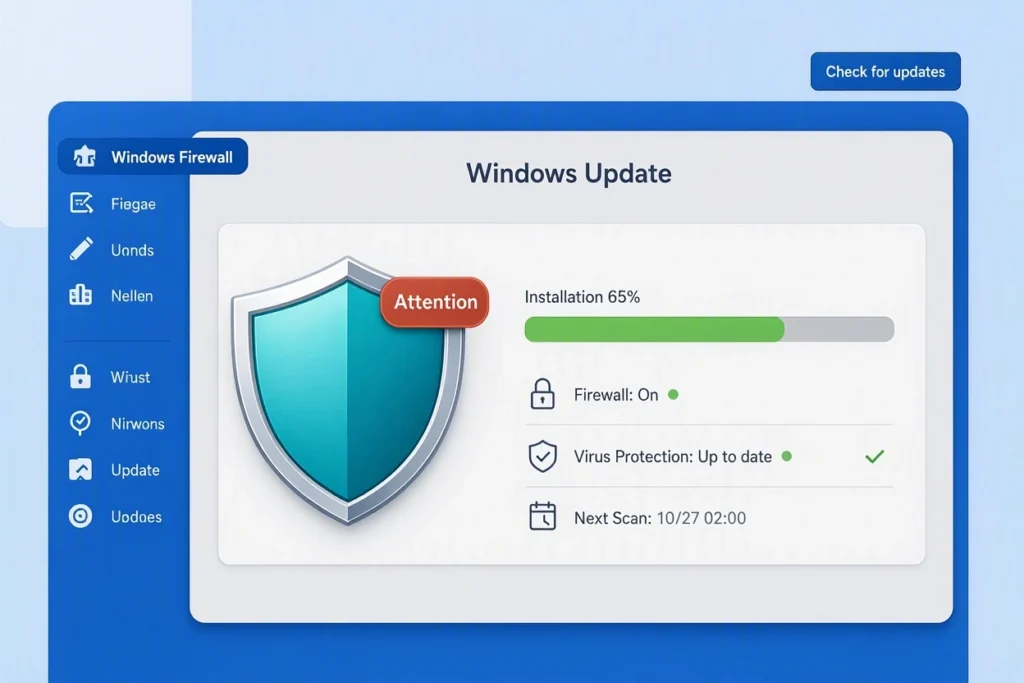
Security software works best when Windows and its protections are properly maintained.
Check Windows Firewall
Open Windows Security and select Firewall & network protection.
Make sure the firewall is enabled for the relevant network profiles. Don’t disable it just to make an application work unless you understand the consequences and have a safe alternative.
Install security updates
Open Settings → Windows Update and select Check for updates.
Install available security updates and restart the computer when required.
Windows 10 reached the end of standard support on October 14, 2025. If you’re still using it in 2026, check whether your device qualifies for an Extended Security Updates program or whether it can upgrade to a supported Windows version.
Keeping your operating system updated helps address known security vulnerabilities.
For additional guidance, consult Microsoft’s Windows Security overview.
9. Should You Reset or Reinstall Windows?
Not necessarily.
A single suspicious application or a performance problem does not automatically justify formatting your laptop.
If Windows Security identifies and successfully removes an unwanted program, additional troubleshooting may be enough.
However, a clean Windows installation may be appropriate after a confirmed serious infection, persistent compromise, or major unauthorized system changes.
Before reinstalling:
- Decide how to protect essential documents and photos.
- Avoid copying suspicious executable files or installers into your backup.
- Follow Microsoft’s official Windows installation instructions.
- Install security updates before restoring normal use.
- Reinstall applications from trusted sources.
- Change exposed passwords from a separate trusted device.
If you suspect ransomware or a sophisticated attack, consider professional assistance before making major changes.
Also, remember that reinstalling Windows does not automatically secure compromised online accounts. Those accounts must be addressed separately.
10. How to Prevent Future Attacks
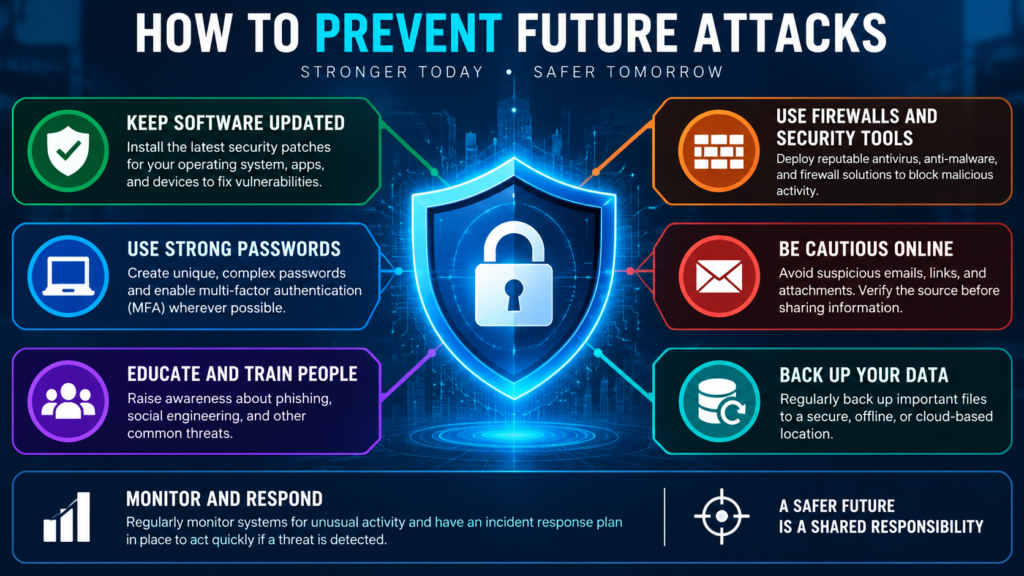
You don’t need to be a cybersecurity professional to make your laptop significantly safer. A few consistent habits can reduce common risks.
Use strong, unique passwords
Avoid reusing the same password across email, banking, and social media accounts.
Consider using a reputable password manager to generate and store unique passwords.
Enable multifactor authentication
Multifactor authentication adds a verification step beyond your password. Passkeys and authenticator apps are useful options when supported.
Download software from trusted sources
Avoid cracked applications, suspicious installers, and fake software updates. Download programs from official websites or reputable app stores.
Keep regular backups
Back up important documents, photos, and work files.
Where practical, maintain a backup that isn’t continuously connected to your laptop. This can reduce the risk of ransomware affecting both your computer and your backup.
Test your backups occasionally to make sure your files can actually be restored.
Lock your screen
Whenever you leave your laptop unattended, press Windows + L.
This simple habit helps prevent someone nearby from using an unlocked computer.
Review account activity regularly
Periodically check sign-in history, recovery information, and connected devices for your primary email and Microsoft accounts.
If something looks unfamiliar, investigate it through the official service rather than clicking links in unexpected messages.
Frequently Asked Questions
Can a hacker access my laptop when it is turned off?
A fully shut-down laptop generally cannot be controlled through ordinary software-based remote access while it remains off. However, an attacker may still access cloud accounts or online files that were previously synchronized, if those accounts are compromised.
Sleep mode is different from a complete shutdown.
Does a clean antivirus scan mean my laptop is completely safe?
No. A clean scan is reassuring, but no single scan can rule out every possible compromise.
Account security, remote-access settings, browser extensions, and other suspicious activity may also need to be checked.
Can someone hack my laptop without knowing my password?
Some attacks exploit software vulnerabilities, stolen sessions, or social engineering rather than requiring the attacker to know your Windows password. Keeping software updated and avoiding suspicious downloads helps reduce these risks.
Is Windows Security enough?
Windows Security provides useful built-in antivirus and firewall protection. It should be combined with software updates, safe browsing, unique passwords, multifactor authentication, and regular backups.
Should I format my laptop if it is running slowly?
No. Slow performance alone is not evidence of hacking. Start by checking Task Manager, storage space, updates, and Windows Security before considering more drastic steps.
Final Thoughts
Finding out whether your laptop has been hacked can feel stressful, especially when it contains personal documents, photos, work files, or important accounts.
The best approach is to investigate the evidence instead of assuming the worst.
Start with a Windows Security scan. Review Task Manager, installed applications, remote-access settings, and account sign-in activity. If you find evidence of unauthorized access, disconnect the affected laptop when appropriate and secure your accounts from a trusted device.
Most importantly, don’t delete unfamiliar system files or reinstall Windows without understanding the problem.
Your next step: Open Windows Security, select Virus & threat protection, and run a Quick scan. If you still have concerns, run a Full scan and review your account security activity.
If Windows Security identifies a threat, note its exact name and recommended action. You can then investigate the result and choose the safest next step.
A few careful checks can help you distinguish an ordinary computer problem from a genuine security concern—and give you a clearer plan for protecting your data.
